📱 Obsidian Git Sync on Android with Termux & SSH
You’ll begin by generating an SSH key on your Android device via Termux, then adding that key to GitHub for secure access. Once authenticated, you can clone your Obsidian vault repository from GitHub directly onto your phone.
With this setup, you’ll be able to pull updates to your notes, make changes from your mobile device, and even push them back to GitHub — keeping everything in sync between your desktop and phone using version control.
This is especially useful if you want a private, secure, and versioned workflow without relying on third-party sync services.
🛠️ 1. Generate SSH Key (TERMUX)
First, generate an SSH key on your device using ssh-keygen:
ssh-keygen -t ed25519 -C "your_email@example.com"
Press
ENTERto accept the default path:~/.ssh/id_ed25519
Read and display the public key:
cat ~/.ssh/id_ed25519.pub
🌐 2. Add SSH Key to GitHub
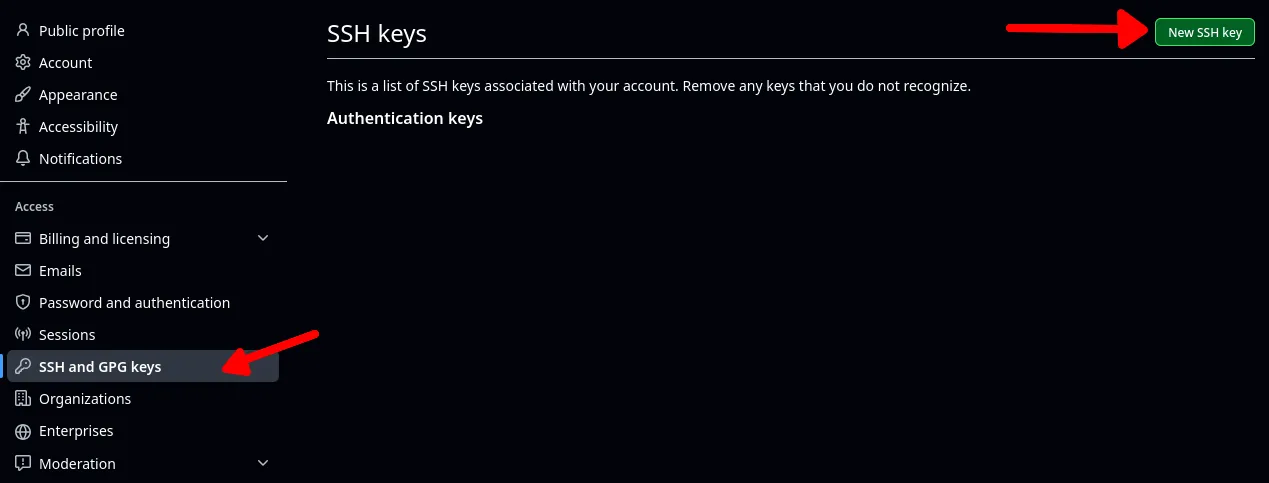
After generating our SSH Key, copy the public key and add it to your GitHub account under SSH and GPG keys in your GitHub settings.
- Log in to GitHub
- Click your profile image (top-right), then go to Settings
- Navigate to SSH and GPG keys → click New SSH key
- Paste your public key (not the private one) into the key field and click Add SSH key.
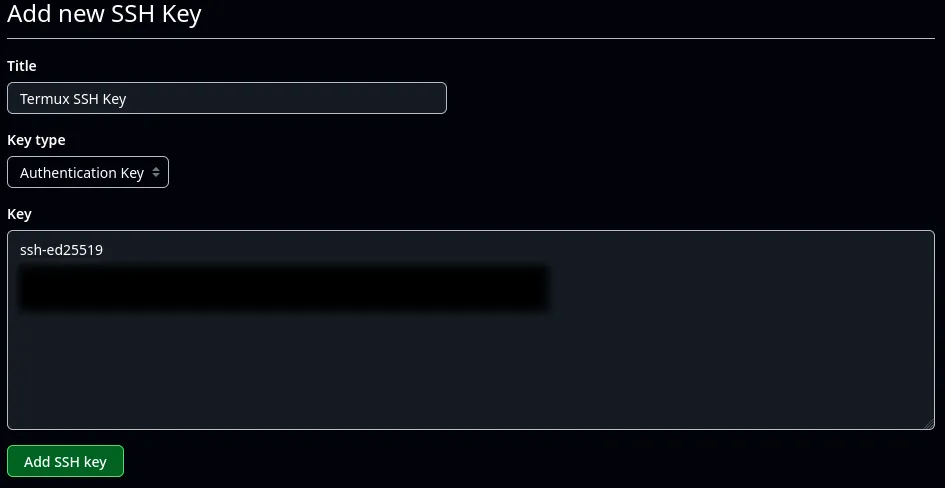
Once the key is added, you can use it to clone your repository using SSH in Termux.
📥 First-Time Clone
Back on your android device, use Termux to navigate to your desired storage location and clone the repository:
cd ~/storage/shared/Documents/termux/your-repo
git pull origin main
🔄 Pulling & Updating Local Repo (Remote Server)
After cloning, you'll be able to pull updates to your local repo using git pull.
sudo git pull origin main
🧳 Git Stash
Use this to temporarily store uncommitted changes:
git stash --all